
You have survey data in a spreadsheet and a request for results by age, region or customer type. Excel offers a pivot table, and your research colleagues ask for a crosstab. They look alike, which is why people search for “crosstab vs pivot table” and for pivot table alternatives.
This article explains both tools and where each one stops working. For the wider picture, start with our guide to crosstabs, banners and how they compare with pivot tables.
Key takeaways
- A crosstab compares survey answers across groups with bases, weighting and significance tests, while a pivot table is a general spreadsheet summary of any list of records.
- Pivot tables struggle with survey data because they lack weighting, nets, significance testing and respondent-based percentages for multiple-response questions.
- The main pivot table alternatives for survey data are crosstab software, statistics packages and scripting, and the right choice depends on how often you run the analysis.
- Compare groups with column percentages and bases, not counts; in the example, 50% of 300 people aged 18 to 34 are likely to buy, against 35% of 400.
What is a crosstab?
A crosstab (short for cross-tabulation) is a table that breaks the answers to one question down by the answers to another. Rows hold the answer options of the question you study. Columns hold the groups you compare, such as age bands. Each cell shows how many respondents fall in that combination, usually as a column percentage.
In survey research a crosstab is more than a count. It carries the base (how many people each column represents), applies weights so the sample matches the population, and flags which differences are statistically significant. A banner table stacks many such columns side by side so one table answers many “by whom?” questions. For the basics, see one-way and two-way tables.
What is a pivot table?
A pivot table is a spreadsheet feature that summarizes a flat list of records. You drag fields into rows, columns, filters and values, then choose how to aggregate: count, sum, average, minimum, maximum. It works on any tabular data and recalculates instantly when you rearrange fields.
That flexibility is the point. A pivot table does not know what a survey question, a respondent or a scale is. It sees rows and columns of values.
How do crosstabs and pivot tables differ?
Both tools can show counts and percentages, so the old advice that crosstabs only count is wrong. The real difference is what each was built to do.
| Crosstab (survey) | Pivot table | |
|---|---|---|
| Built for | Comparing groups of respondents | Summarizing any list of records |
| Multiple-response questions | Handled as a single question | Each option needs separate setup |
| Weighting | Built in | Needs a workaround |
| Nets and top-2 box | Defined once, reused | Manual grouping per table |
| Significance testing | Letters or arrows in the cells | None |
| Many banner columns | Stack independent variables | Nesting multiplies columns |
What does the same survey look like in each?
Take 1,000 respondents asked how likely they are to buy a brand in the next three months. We group the answers into a net: “likely” means the top two boxes on a five-point scale. The sample splits into 300 people aged 18 to 34, 400 aged 35 to 54, and 300 aged 55 and over.
A pivot table counting respondents gives this:
| Purchase intent | 18-34 | 35-54 | 55+ | Total |
|---|---|---|---|---|
| Likely (top 2 box) | 150 | 140 | 60 | 350 |
| Not likely | 150 | 260 | 240 | 650 |
| Grand total | 300 | 400 | 300 | 1,000 |
The counts are right, but you cannot compare them across columns because the groups differ in size. Switching to ”% of column total” fixes that. A survey crosstab goes further and adds the base and the test:
| Purchase intent | 18-34 (A) | 35-54 (B) | 55+ (C) | Total |
|---|---|---|---|---|
| Base (n) | 300 | 400 | 300 | 1,000 |
| Likely (top 2 box) | 50% BC | 35% C | 20% | 35% |
| Not likely | 50% | 65% | 80% | 65% |
Here is the arithmetic behind the letters, at 95% confidence. Compare 18-34 with 35-54: pooled share = 290 / 700 = 41.4%. Standard error = square root of (0.414 x 0.586 x (1/300 + 1/400)) = 0.0376. The gap is 15 points, so z = 0.15 / 0.0376 = 3.99, well above the 1.96 threshold.
Compare 35-54 with 55+: pooled share = 200 / 700 = 28.6%, standard error = 0.0345, z = 4.35. Also significant.
So “BC” beside 50% means the 18-34 group is significantly higher than both older groups, and “C” beside 35% means 35-54 is significantly higher than 55+. The reader sees the finding at a glance.
Why do pivot tables struggle with survey data?
Pivot tables work well until the data takes the shape of a survey. Five problems come up again and again.
- Multiple-response questions. “Which of these brands have you heard of?” produces one column per option, or several answers per respondent. A pivot table counts answers, so percentages add to 100% of answers. A survey table needs the share of respondents, which adds to more than 100%.
- Weighting. If your sample under-represents a group, you weight it. A pivot table has no weight field. You can sum a weight column instead of counting, but the base you need for significance testing is then wrong.
- Nets and scales. Top-2 box, bottom-2 box and rating averages must be rebuilt by hand in each table.
- Significance testing. There is no built-in test, so you copy counts out and calculate z-tests or chi-square yourself.
- Many banners. Putting age, region and tenure side by side means three pivot tables or a nested layout that multiplies the columns.
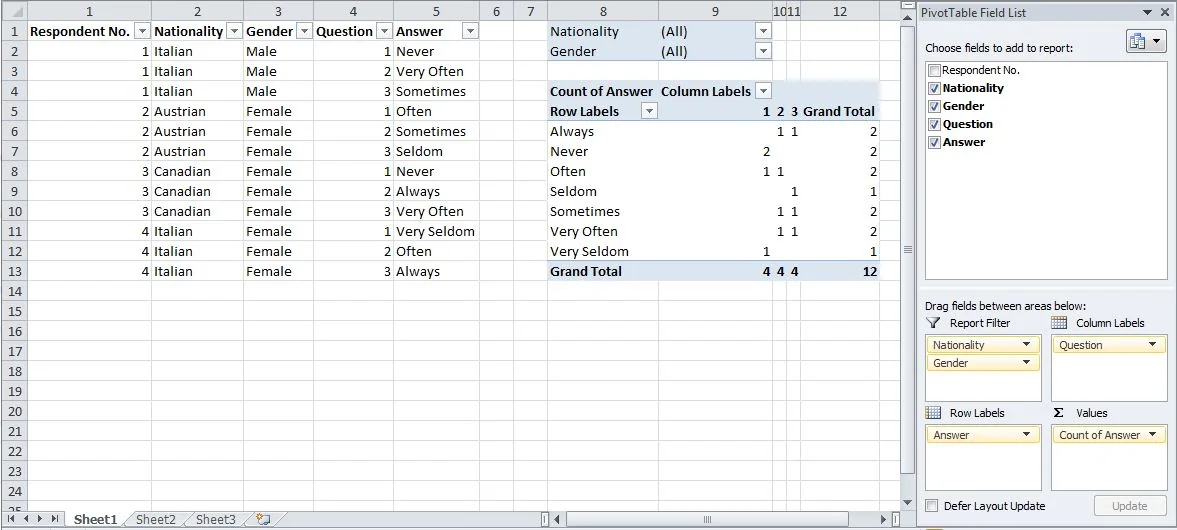
The long layout in the screenshot above, with one row per respondent per answer, is a common way to force survey data into a pivot table. It makes counting possible and everything else harder.
What are the alternatives to pivot tables for survey data?
There are three realistic paths. The right one depends on how often you run the analysis and who reads it.
Crosstab or tabulation software
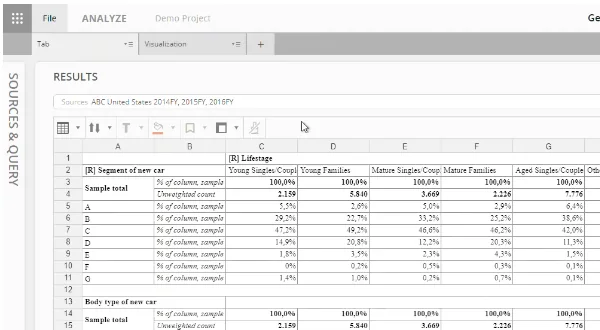
Purpose-built crosstab software reads the survey file with its question types intact, applies weights and nets, stacks banners, and marks significant differences. It fits best when you produce the same tables for every project or tracker wave. See what crosstab software does.
Statistics packages
Statistical software gives you full control: custom tests, regression, factor analysis. The cost is time. Formatting thousands of cells into a client-ready table is slow, and a non-analyst finds the results hard to check.
Scripting
Analysts who write code in R or Python can produce weighted tables and tests repeatably under version control. It works if you have the skill in house, and fails if the person who wrote the script leaves.
Halo Reports covers the first path: crosstabs and banner tables with weighting and significance testing, plus charts and interactive report pages, as described on the Halo Reports page. For teams running wide, complex studies and global brand trackers, there is also one governed platform for insights and research.
When should you stay with a pivot table?
Use a pivot table when the data is a list of records, such as sales, tickets or web visits. It is also fine for a quick look at a clean, single-answer question when nobody will test the differences.
Move on when you hit weighting, a multiple-response question, a net or a significance question. Those mean the table is a research deliverable, not an exploration. If you are unsure whether a table is the right output at all, read our comparison of crosstabs and lists.
Common mistakes
- Comparing counts across groups of different size. 150 and 140 look similar until you see the bases are 300 and 400. Always show column percentages with bases.
- Treating a difference as real without a test. A 15-point gap at n = 40 per group may be noise. Test it.
- Reading multiple-response percentages as a distribution. They are shares of people, so they add to more than 100%.
- Ignoring weights. An unweighted table can misstate the population even when every count is correct.
- Rebuilding nets by hand in every table. Define each net once, or it will differ between slides.
What should you do next?
Take one survey question you already tabulate in Excel (our crosstab in Excel guide covers the steps) and rebuild it as a crosstab with column percentages, bases and a significance test at 95% confidence. If the result changes what you would say, or the work takes far longer than it should, move to a tool built for survey tables, where you can also ask questions of your results in plain language.